Canvas
The center canvas is where you draw and inspect the frame. You can pan, zoom, hover items, and use the toolbar to create geometry and loads directly.

This guide walks through every major tool in the app: building geometry, editing properties, applying supports and loads, managing load combinations, solving the model, and reviewing results. It is written to help both first-time users and anyone coming back to the app after a break.
The app is split into a few main areas so you can model visually and numerically at the same time.
The center canvas is where you draw and inspect the frame. You can pan, zoom, hover items, and use the toolbar to create geometry and loads directly.
The bottom panel holds tables for nodes, materials, members, dimensions, supports, loads, and load combinations. Use it when you want precise values, sorting, and bulk editing.
The right panel shows the currently selected item. Click a node, member, support, or load to edit it quickly without searching through tables.
After solving, the results area lists reactions and member end forces for the active case, while the result buttons above the canvas switch the diagram view.
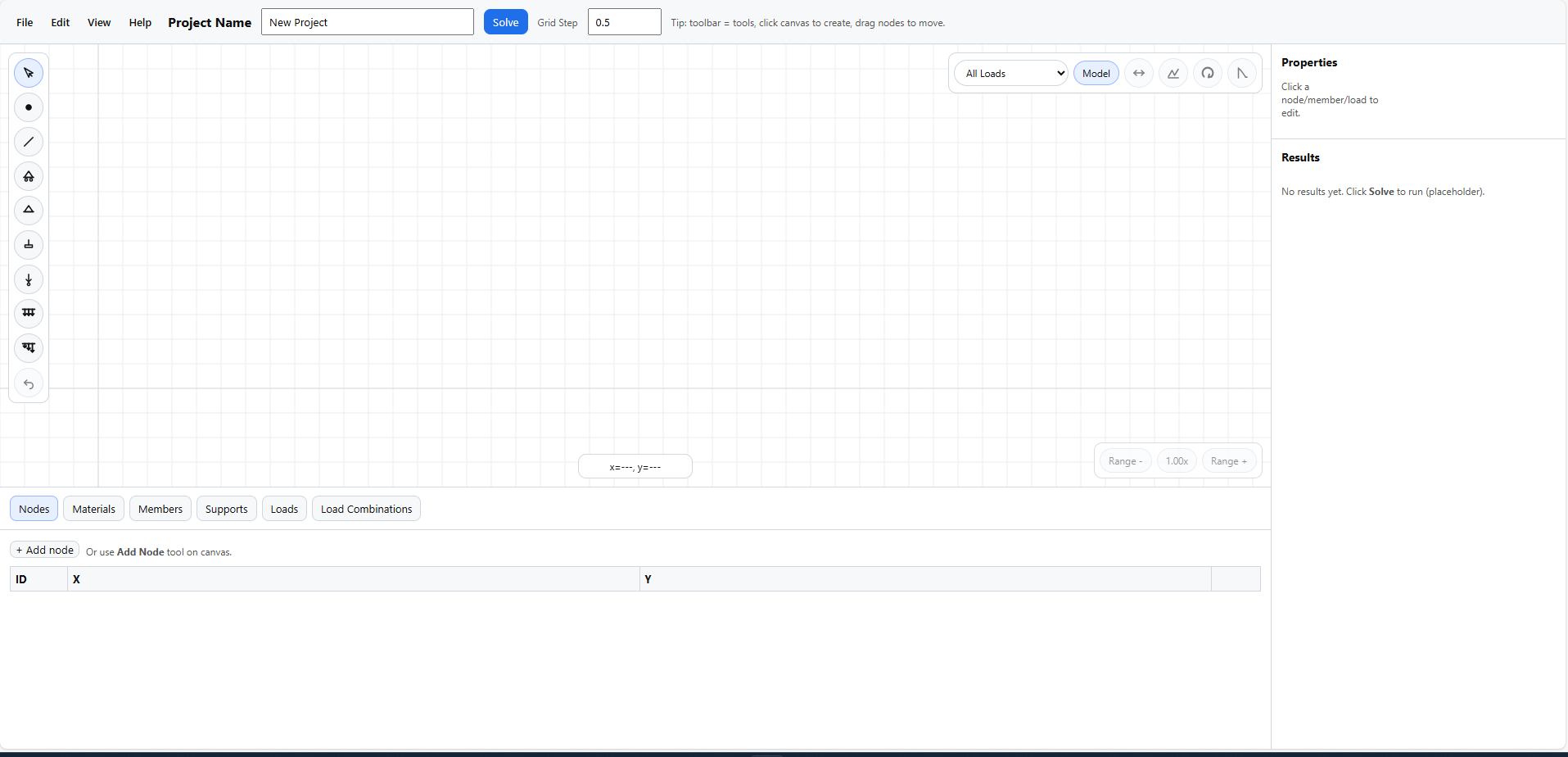
The main workspace brings together the top menu, left toolbar, central canvas, right properties panel, and bottom tabs.
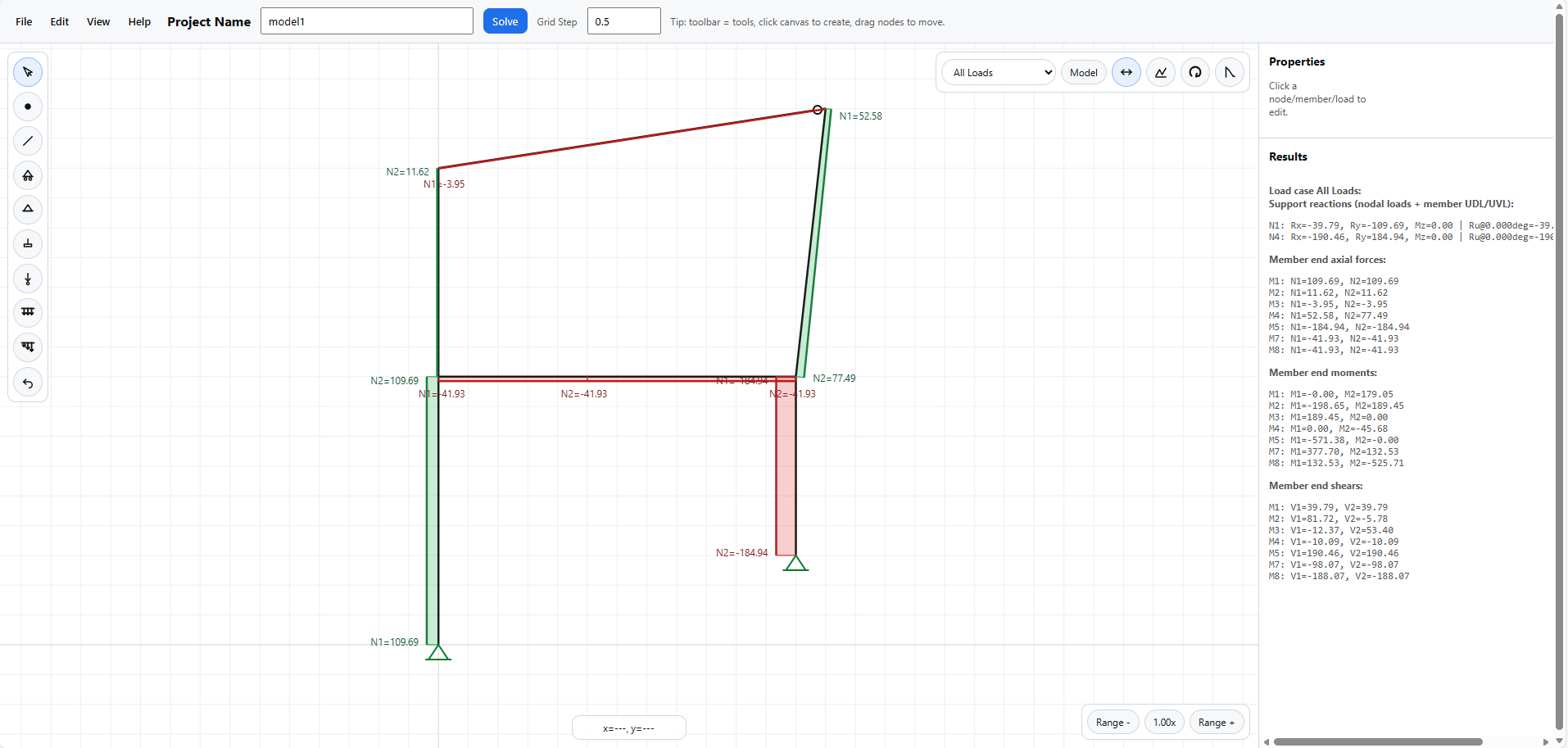
After solving, the model view can display reactions, member result labels, and the detailed results summary on the right.
The left vertical toolbar is the fastest way to build and load the model.
Returns the canvas to selection mode. Use this when you want to click items, inspect labels, or edit properties.
Places a node on the canvas. If you create a node on or near an existing member, the app can split that member at the new point.
Click a start node and then an end node to create a member between them. Preview lines help confirm the connection before it is placed.
The roller, pinned, and fixed support buttons place supports directly on nodes. After selection, support restraints and angle can still be edited from the properties panel or Supports tab.
Opens a popup first so you can define a new node load or reuse an existing one. After pressing Add, keep clicking nodes to apply that same load repeatedly.
Opens a popup for direction and magnitude, or lets you choose an existing member UDL. Then click one or many members on the canvas to apply the same grouped load.
Works like the UDL tool, but asks for `w1` and `w2` so the load can vary along the member.
Quick access to undo from the toolbar when you are working directly on the canvas.

This is the quickest route for modelling and applying supports and loads directly on the canvas.
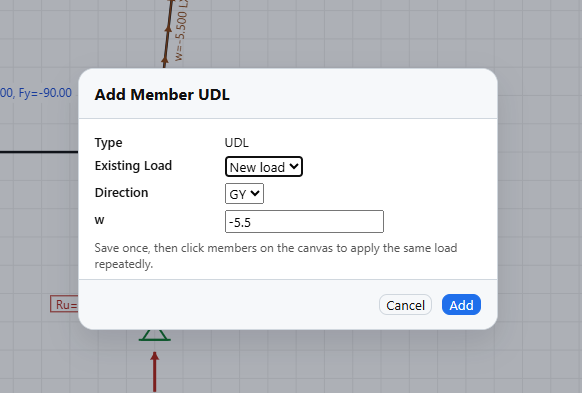
Quick load tools open a popup first so you can define a load once and then keep clicking members or nodes to apply it.
Create nodes from coordinates, edit positions numerically, and review node IDs.
Define reusable section properties such as area, inertia, elastic modulus, capacities, and self-weight.
Assign node connections, material links, releases, section properties, and split members at a chosen distance.
Review or edit dimension annotations already placed in the model.
Edit support restraints, angle, and presets in a table format.
Manage grouped node loads and member loads, descriptions, directions, magnitudes, sorting, and manual ordering.
Create load cases, assign loads to them, set load factors and combination factors, reuse description bundles, and manage self-weight bundles.
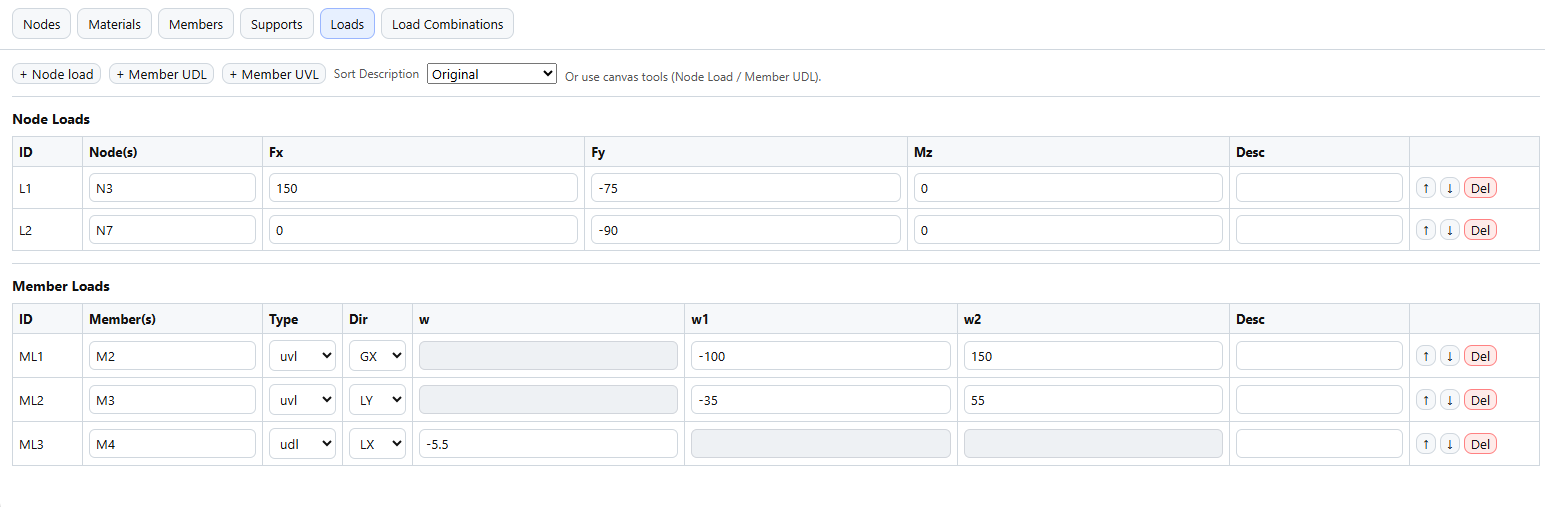
The Loads tab is useful when you want precise numeric editing of grouped node loads and member loads.
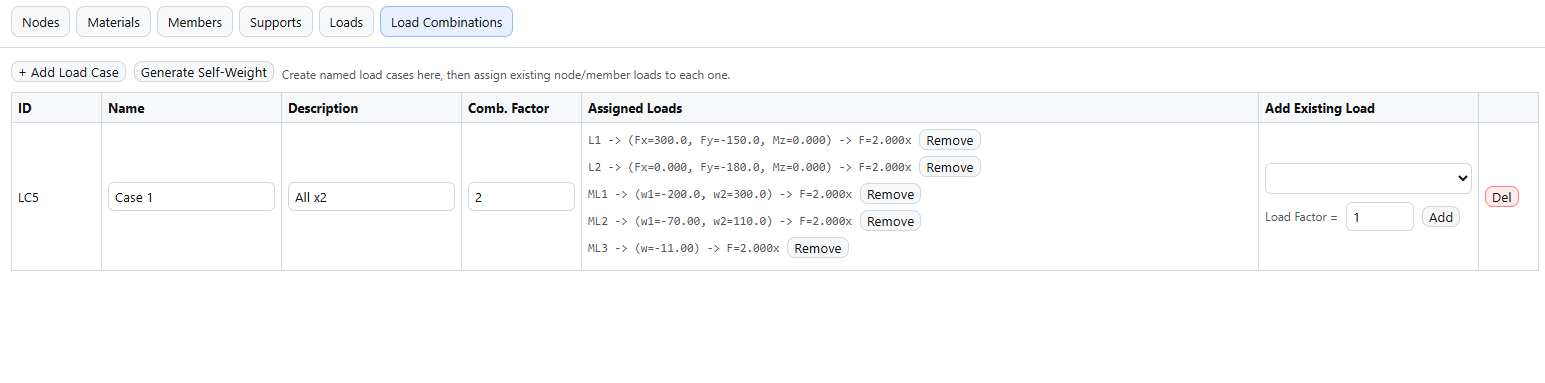
Here you can create named cases, assign loads, and manage both load factors and combination factors.
Whenever you click something on the model, the right panel becomes the quickest place to edit it.
Edit coordinates, connectivity, length, releases, material assignment, and member properties.
Edit restraints, angles, node forces, nodal moments, member load direction, UDL and UVL values, descriptions, and delete actions.
The virtual All Loads selector is not a saved load combination. It is a quick view and solve mode that includes every load in the model at `1x` factor.
Make sure the model has enough restraints and no validation errors. If something is unstable, the app will warn you.
Use the case selector above the canvas to switch between `All Loads` and saved load cases. Then use the result buttons for model, axial, shear, moment, and displacement views.
Esc cancels the active tool. Delete removes the selected item. Ctrl+Z undoes the last change.
Use the mouse wheel to zoom. Drag empty canvas space to pan. Use Centralize from the View menu if you want to refit the model.
This app is an engineering aid. Results should always be checked independently and reviewed by a competent person before being used for design, construction, or safety-critical decisions.